Your own password store #3
Use it daily
This is the part where it all pays off. In part one we created a key and a password store, and in part two we sent it to a server. Today we’ll put it on your phone, and then we’ll see how to live with it day by day. You’ll need the address of your repository and the private-key.asc file you exported.
Install HardenedPass
Go to the latest release and download HardenedPass_vX.Y.Z.apk and HardenedPass_vX.Y.Z.apk.sha256. You need Android 12 or newer, and no Google services at all, it runs perfectly on GrapheneOS.
A password manager is a really bad thing to install from a tampered file, so check the download. In the folder with the two files, on your computer or in Termux, run:
|
|
It must say OK. The install page also explains how to verify who signed the APK, which is the stronger check. Copy the APK on the phone if it isn’t already there, open it from your file manager and allow the install.
Connect the app
Open the app and tap Clone Remote Repo.

Paste your repository’s address in Repository URL. SSH key is already selected, and it’s what we want.

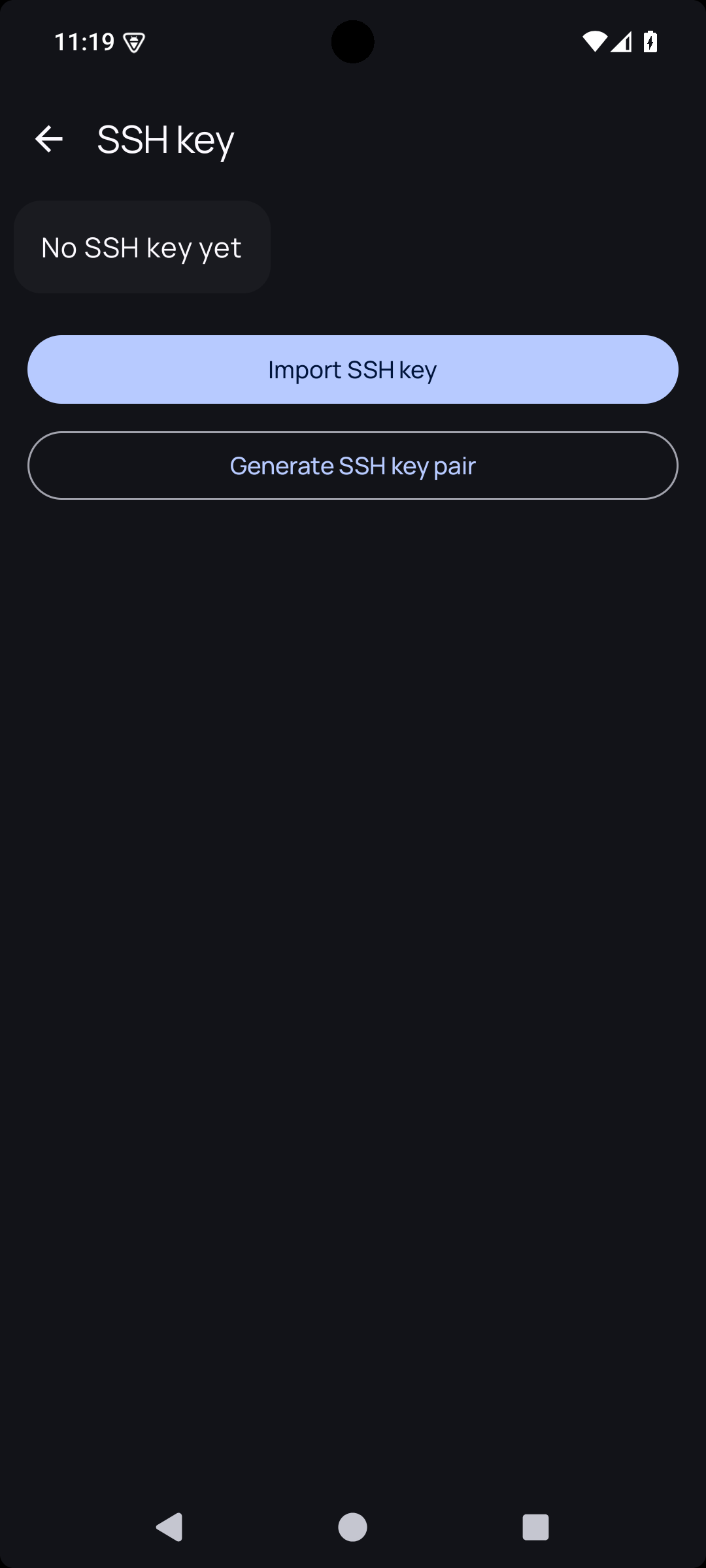
Your phone needs its own SSH key. Tap Manage, then Generate SSH key pair.
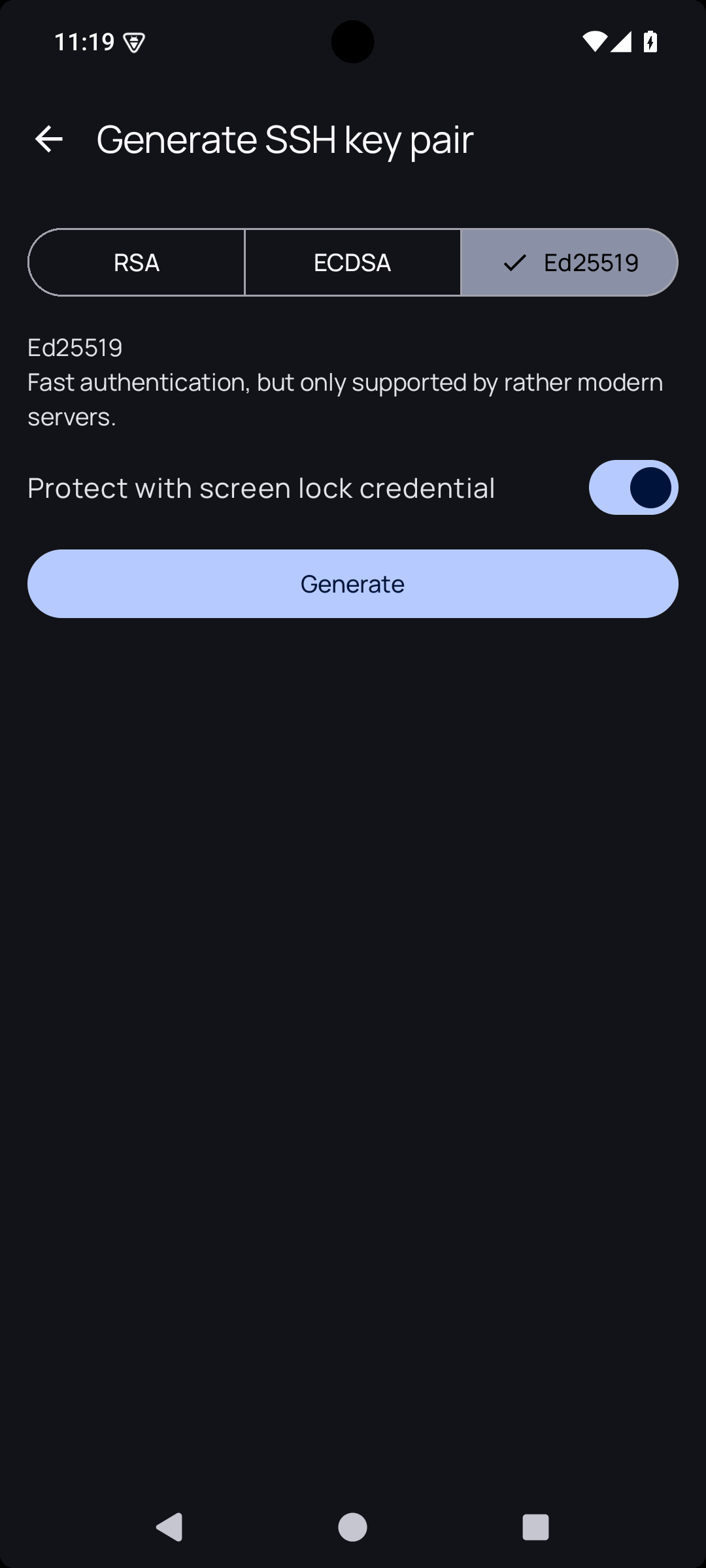
Choose Ed25519, leave Protect with screen lock credential on and tap Generate. Now the app will ask for your fingerprint or PIN every time it uses this key, and the private half never leaves the phone.
The app shows you the public key. Tap Share to send it to yourself, then add it on your provider’s website, in the same place where you added the first one. A separate key for each device means that if you lose the phone, you can remove that key alone.

Go back to the repository screen and tap Clone. The first time you connect, the app remembers the server’s identity, and from then on it refuses to connect if that changes.
Once the clone is done, the app tells you which key the store is encrypted for. Copy private-key.asc on the phone over USB, unless it’s already in your Download folder, tap Import PGP key and pick the file.

And there’s your store!

private-key.asc from the phone’s storage right now, and from your computer’s disk too. The only other copy should be your offline backup.Tap your entry. The app asks for the passphrase of your GPG key (the box just says Password), and shows you what’s inside.

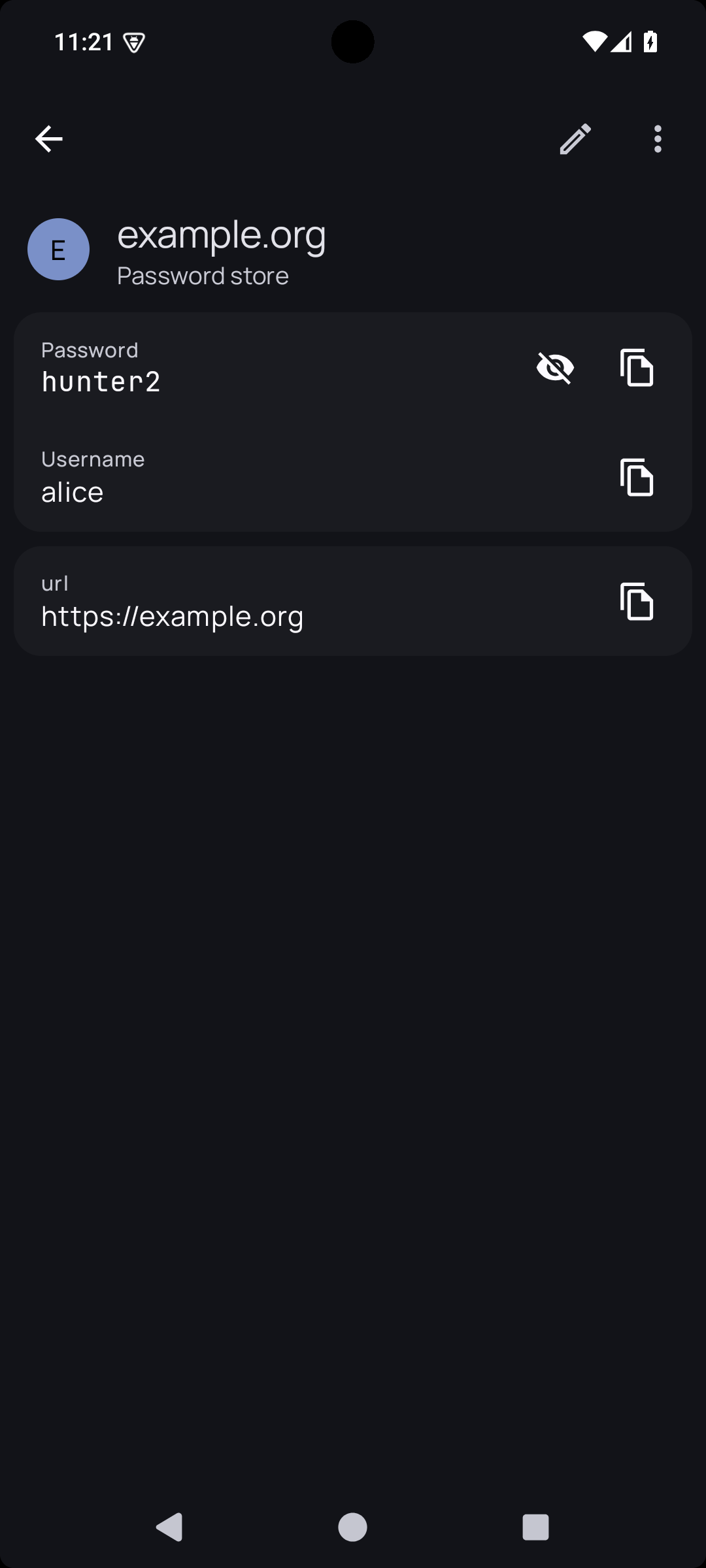
If you got here, it works, and the hard part is over. You did it!
Daily use
Adding a password
Tap New entry, then Create new password. Give it a name, usually the site’s address, so that autofill can find it later. A folder helps too, if you like to keep things tidy.

Tap the three dots in the password field to open the generator. Random makes character passwords and Diceware makes word passwords. For most logins go with Random: you’ll never type them anyway, the app does it for you. Diceware is better for the few you must type by hand, like the password of your TV’s streaming account.
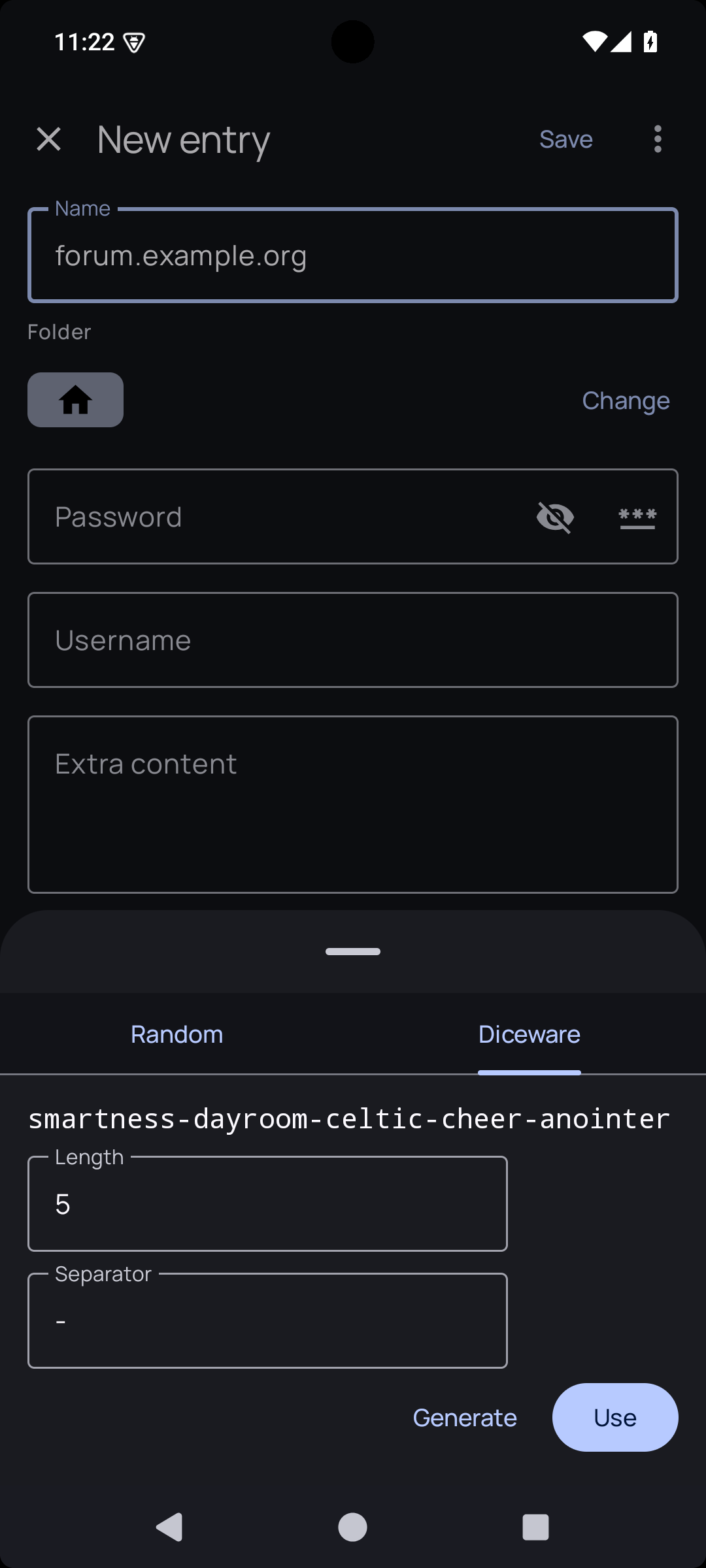
Tap Use, then Save. There’s more on entries in the docs, including one-time codes if you want to keep your 2FA in the store.
Syncing
This is the one thing to get used to: saving an entry on the phone doesn’t send it anywhere. It stays on your phone until you sync. Pull down on the list, or use the menu in the search bar and tap Synchronize repository.
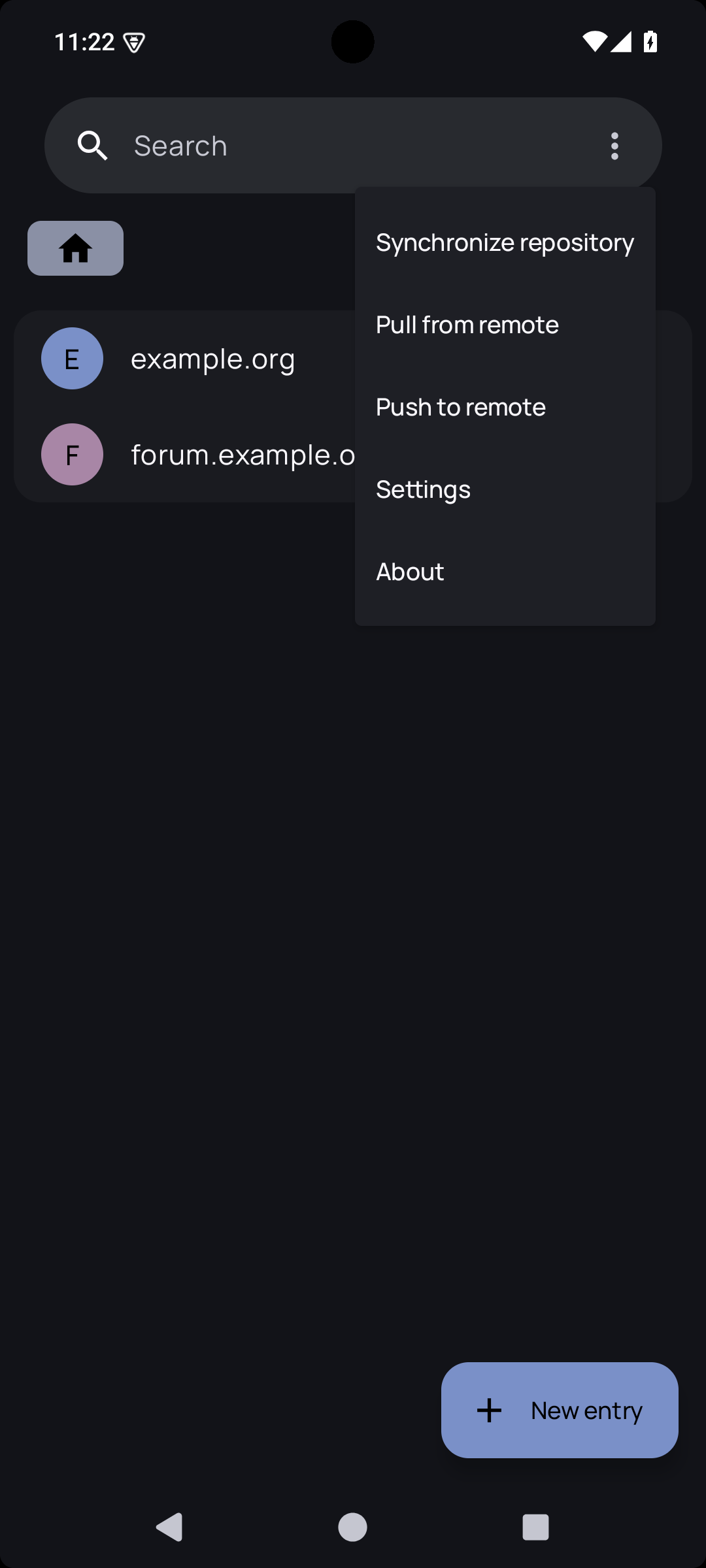
If you don’t want to think about it, turn on Push after each change in Settings, Repository. On the computer the same thing takes two commands:
|
|
Sync often, and always before you edit something on another device: two devices changing the same entry is the one situation where git needs your help. The sync page explains how to get out of that.
Autofill
Copy and paste works, but filling your logins directly is much nicer. Open Settings, Autofill, turn on Enable Autofill and choose HardenedPass in the system dialog. It only trusts browsers it knows, and Firefox has the best support. The autofill page has the whole list.
When things go wrong
You lost your phone. Your entries are encrypted and the key inside the app is protected by your passphrase, so don’t panic. Go on your provider’s website and remove the phone’s SSH key, so it can’t reach the repository anymore, then set up the app on the new phone from your backup. If you think somebody may have your passphrase too, read the next one.
You think your private key was stolen. Assume your passwords will be read: create a new key, re-encrypt the store with pass init new@example.org, and change the passwords that matter, starting from your email. Moving to a new key doesn’t help with old copies of the files, because git history keeps them.
You forgot your passphrase. I’m sorry, but this is the end of the road. Nobody can help you, and that’s the whole point of encryption. This is why it’s on paper, in a drawer, while you learn it.
You lost your key, and you have no backup. Same as above. Back up your key.
Something else broke. Have a look at the troubleshooting page, and if it’s a bug, let me know.
What’s next
You now have a password manager which you fully control, that doesn’t depend on any company, and that works with any tool that speaks pass. If tomorrow I stop working on HardenedPass, your passwords are still right there, and that’s the whole reason I like this setup.
There’s still more you can do to make this safer: two-factor authentication on your git account, keys limited to a single repository, hiding your entry names, hardware keys. That’s a topic of its own and I’ll cover it in a future post, for now enjoy your new password store.
The complete documentation has all the details about everything we’ve seen here, and if you get stuck somewhere, let me know.
I’ll see you on the next one 👋