Documentation
On this page
Entries
Find an entry
The list shows the folders and entries of the store. Tap a folder to open it, or type in the Search bar at the top. Recursive filtering, in Settings, decides whether the search also looks inside folders.
Read an entry
Tap an entry. The app asks for your key’s passphrase, decrypts the file and shows its fields. It asks every time, unless you turn on Enable passphrase caching in Settings.
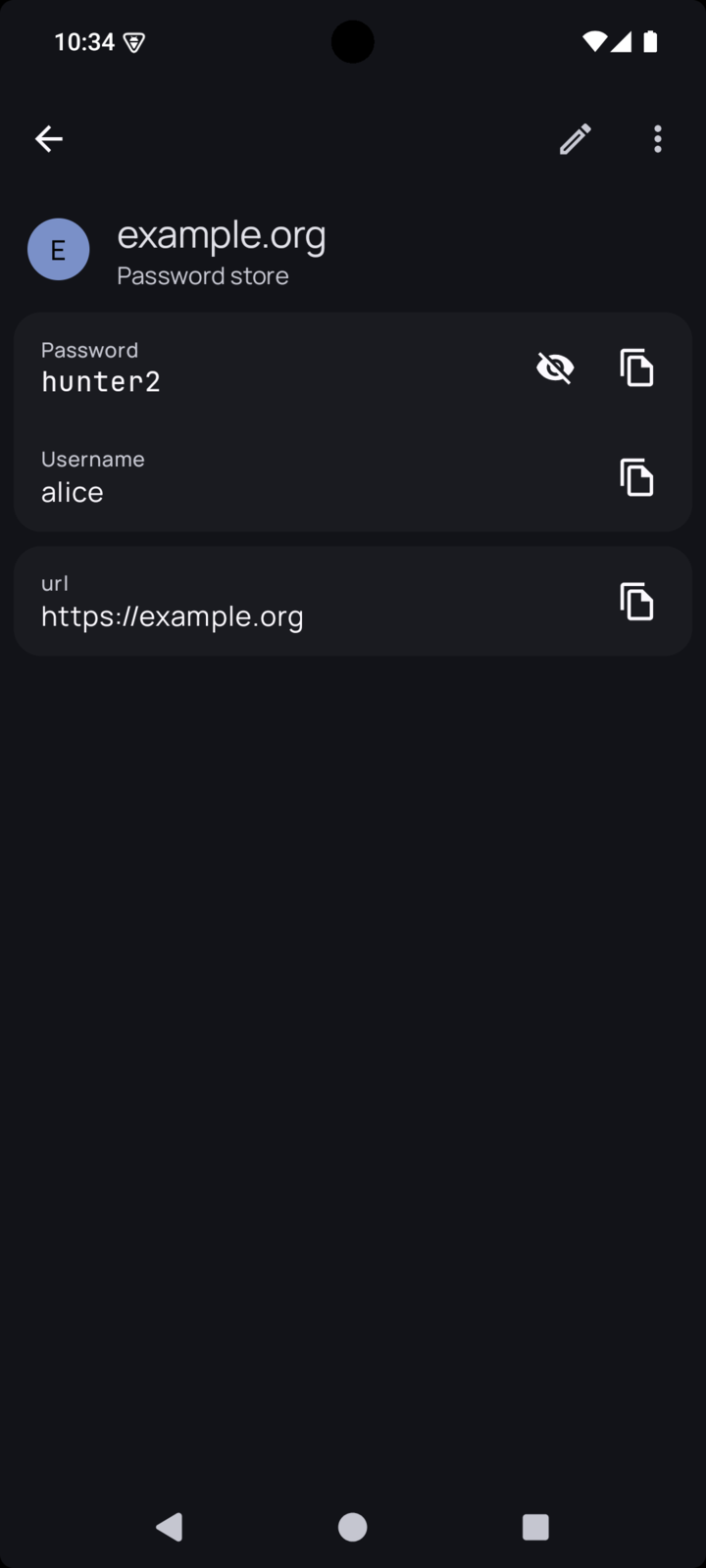
- The eye icon shows or hides the password.
- The copy icon next to a field copies it. A copied password is cleared from the clipboard after 45 seconds by default, and Password copy timeout changes that. The same timeout closes an open entry.
- The pencil opens the editor.
Create an entry
Tap New entry, then Create new password.
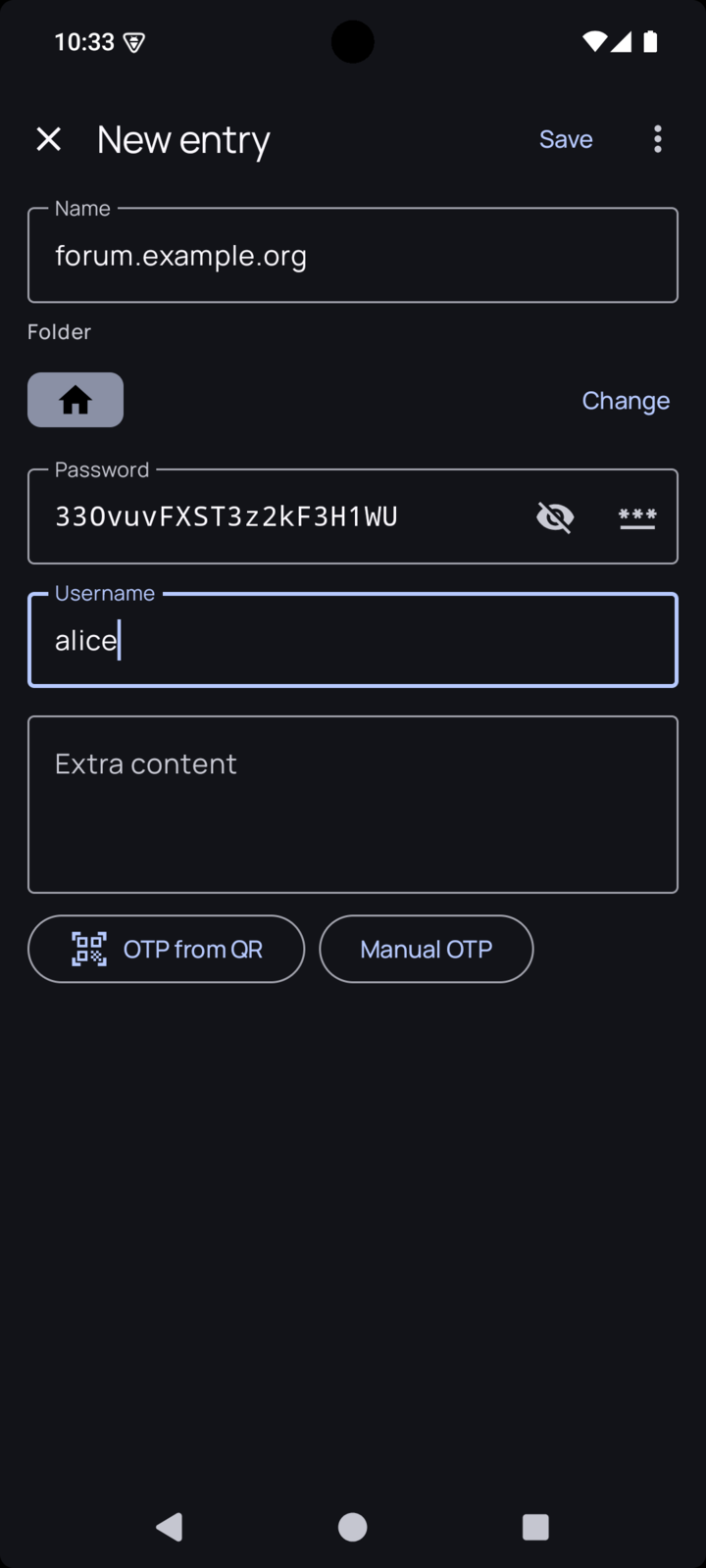
- Name is the file name. Use the site’s address, such as
example.org: it is what autofill looks for and what you will search for later. Remember that the name is not encrypted. - Folder is where the entry goes. Change picks another one.
- Password, Username and Extra content are what gets encrypted. Anything you put in extra content is stored as further lines of the entry.
Tap Save. The entry is encrypted and committed on the phone. It does not reach your server until you sync.
Create new folder, in the same menu, makes an empty folder.
Generate a password
In the editor, tap the generator icon at the end of the Password field.
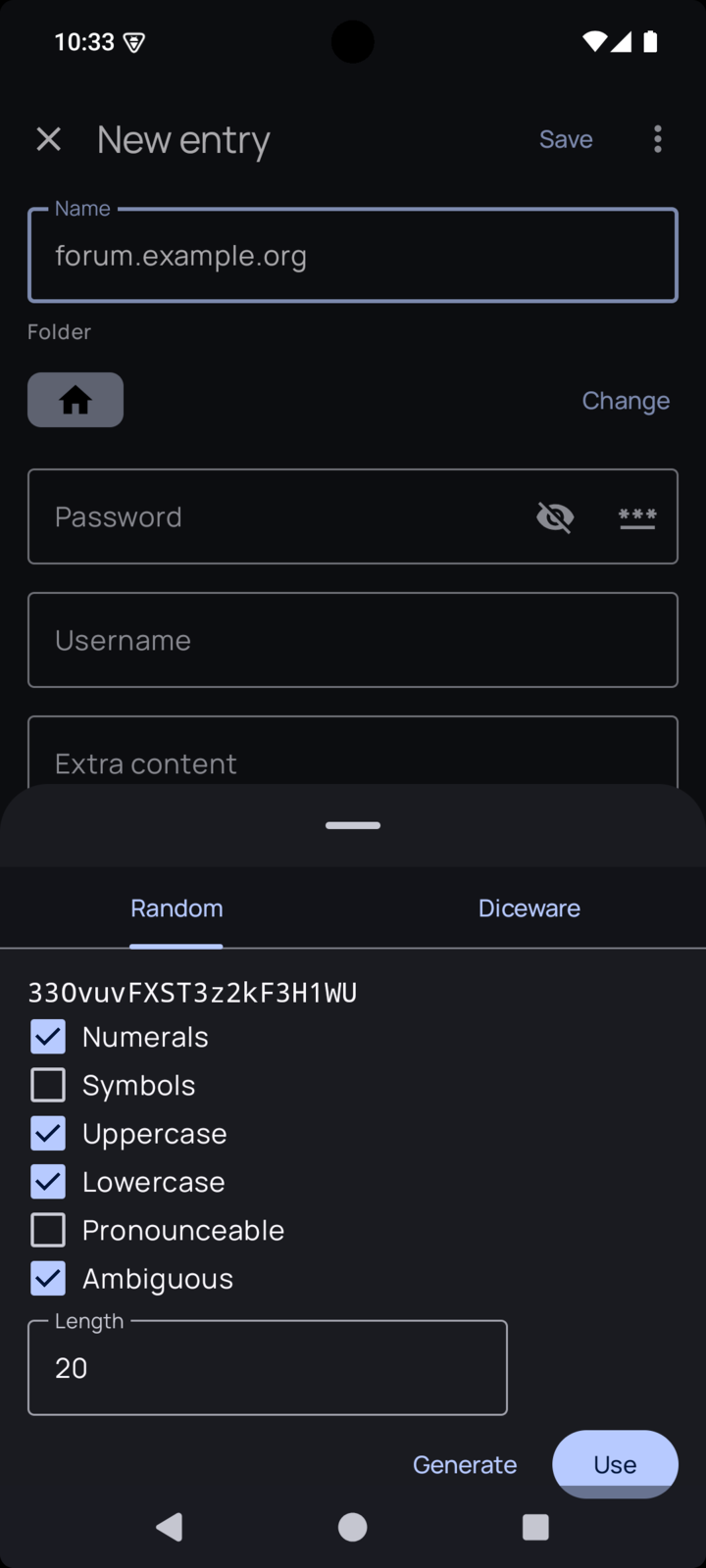
- Random makes a string of characters. Choose the character types and the length.
- Diceware makes a passphrase of real words, easier to type by hand. Choose how many words and which separator goes between them.
Generate makes a new one, and Use puts it in the field.
Edit an entry
Open the entry and tap the pencil. Change what you need and tap Save.
Move, delete and more
Press and hold a row to select it. Tap other rows to add them to the selection.
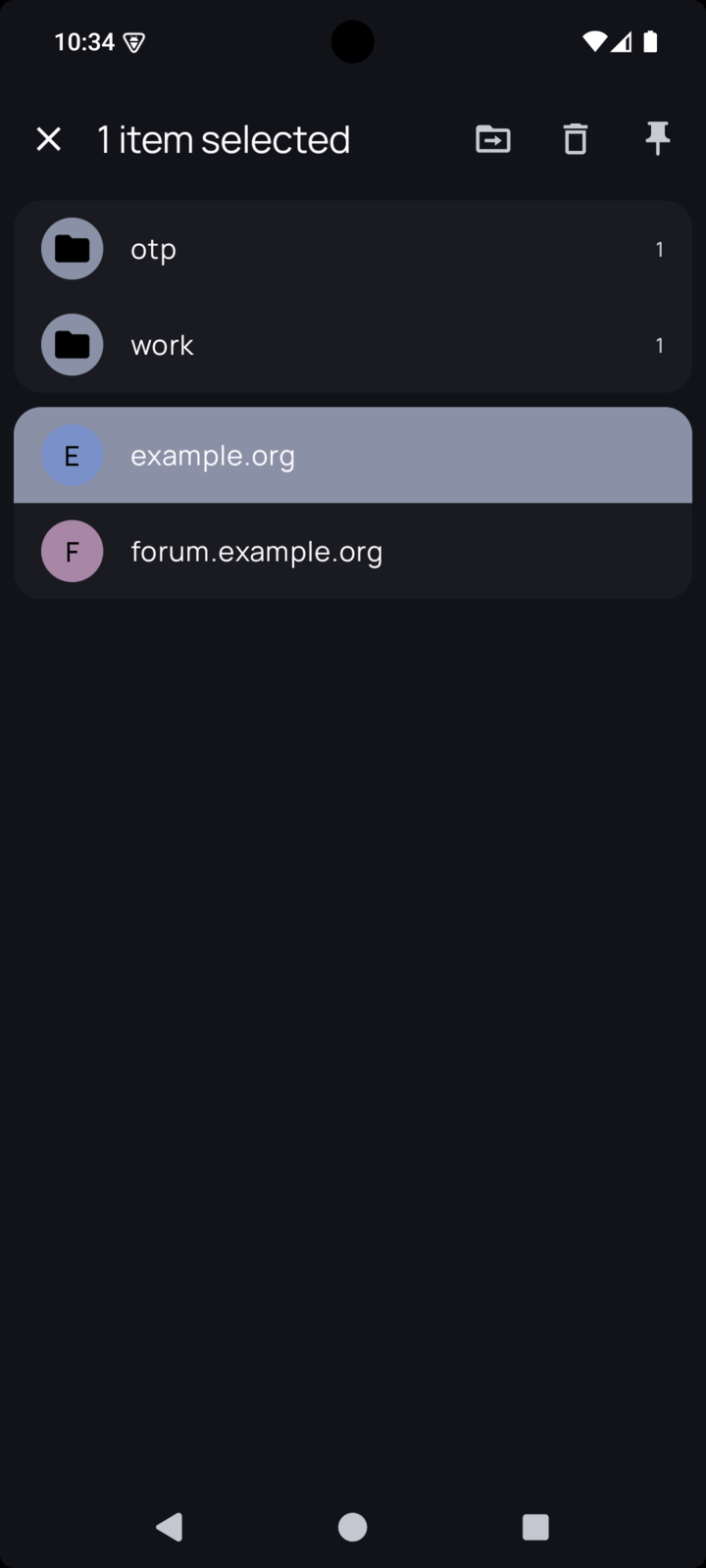
The icons at the top move the selection to another folder or delete it. With a single selection you can also rename a folder, or place a shortcut to an entry on the home screen.
Deleting removes the file and records that in git, so the old version is still in the history of your store.